> For the complete documentation index, see [llms.txt](https://docs.expel.io/llms.txt). Markdown versions of documentation pages are available by appending `.md` to page URLs; this page is available as [Markdown](https://docs.expel.io/connect-your-technology/l-p-integrations/palo-alto-networks/palo-alto-networks-strata-setup-for-workbench.md).
# Palo Alto Networks Strata Setup for Workbench
This guide covers how to set up Palo Alto Networks (PAN) Strata Logging Service with Workbench via webhook.
## Prerequisites
1. You must have admin access in Workbench to set up this integration.
2. You must have role privileges that allow for creation and management of log forwarding profiles in Palo Alto Strata.
## Step 1: Add Palo Alto Strata as a Security Device in Workbench
1. [Log in to Workbench](https://workbench.expel.io/auth/login?orig=%2F).
2. In the side menu, navigate to **Organization Settings > Security Devices**.
3. Select **Add Security Device**.
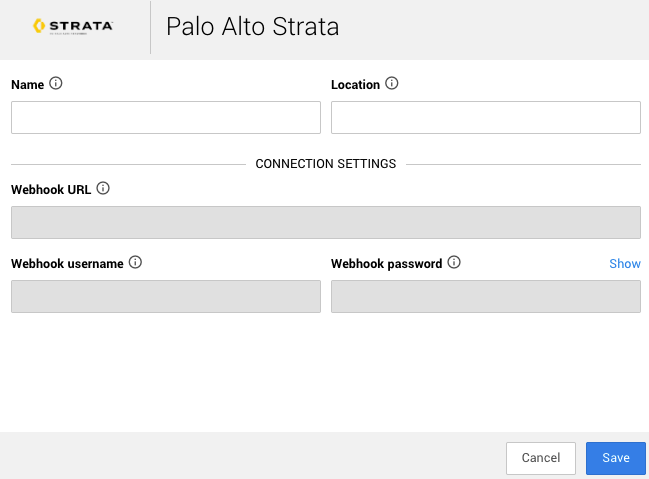
4. In the search box, type “Palo Alto” and then select the **Palo Alto Strata** integration.
5. Complete the fields as follows:
* **Name** - enter a name that might help you more easily identify this integration, such as “CompanyName Palo Alto Strata”; this name will display in Workbench under the Name column, and is a text string that you can filter on.
* **Location** - enter the location of your integration, for example “cloud.” This is also a text string that you can filter on, so we recommend being consistent with location naming across your Expel integrations.
6. Select **Save**.
7. Your device should be created successfully within a few seconds.
8. On the Security Devices page, select the dropdown arrow for the Palo Alto Strata device you just onboarded, and select **Edit**.
9. In the Connection Settings section, webhook credentials have been automatically generated and populated. **Copy and save** the URL, username, and password for use in the next step.
## Step 2: Configure Palo Alto Strata to Send Events to Expel's Webhook URL
1. Log in to the [Palo Alto Hub](https://apps.paloaltonetworks.com/).
2. Launch **Strata Logging Service**.
3. In the main menu, select **Log Forwarding** and then select the **HTTPS** tab.
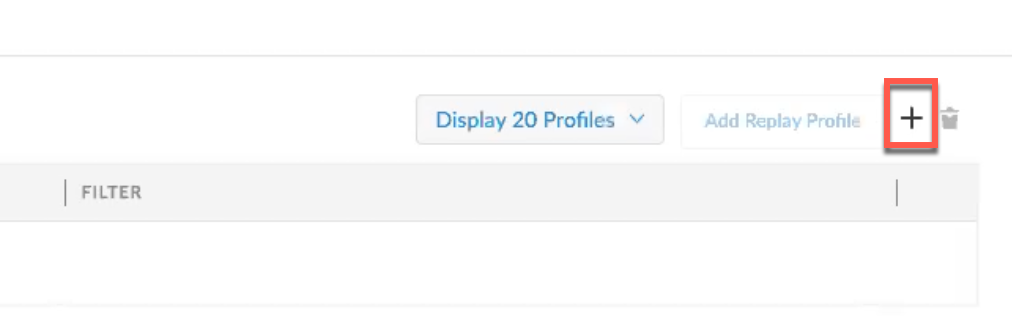
4. In the top right of the list, select "+" to create a new forwarding profile.
5. On the HTTPS Forwarding configuration page, configure the settings as follows:
* **Name** - enter a descriptive name, such as "Expel\_Workbench\_Forwarding".
* **URL** - paste the Webhook URL you copied from Workbench in [Step 1](#step-1-add-palo-alto-strata-as-a-security-device-in-workbench).
* Leave the **Server Authentication** and **Client Authentication** sections as is.
* In the **Client Authorization** section: For Type, select **Basic Authorization**. Then, enter the **Webhook username** and **Webhook password** you copied from Workbench in [Step 1](#step-1-add-palo-alto-strata-as-a-security-device-in-workbench).
* Select **Test Connection** to ensure that Strata can communicate with the Workbench webhook.
6. Select **Next**.
7. In the Payload Format dropdown, select **Array JSON**.
8. Skip the **Status Notification** and **Profile Token** settings.
9. Select + **Add** to configure the log types to forward. Forward these **three essential log types** for visibility:
* **URL** - Paste the following required filter:
```
URLCategory = 'malware' OR URLCategory = 'command-and-control' OR URLCategory = 'phishing' OR URLCategory = 'dynamic-dns'
```
* **Threat** - Paste the following required filter:
```
(severity = 'Medium' OR severity = 'High' OR severity = 'Critical' ) AND (Subtype = 'spyware' OR Subtype = 'wildfire-virus' OR Subtype = 'virus' OR Subtype = 'wildfire') OR (ThreatName LIKE "%webshell%" OR ThreatName LIKE "%crypto%" OR ThreatName LIKE "%miner%" )
```
* **GlobalProtect -** No filtering recommended.
{% hint style="info" %}
HTTP log forwarding profile query strings have a limit of 4096 characters. PAN recommends around 5 filters per profile.
{% endhint %}
10. Select **Save** to finalize the log selection.
11. Select **Save** again to save the forwarding profile.
## Step 3: Test Webhook Connectivity
On the Log Forwarding page in Palo Alto, select the **HTTPS** tab to see HTTPS Profiles. After saving, the Status of a new forwarding profile here may show as `Provisioning`. Wait for up to 10 minutes for the status to change to `Running`.
To check if alerts are coming through in Workbench, navigate to **Dashboards > Alert Analysis**. Scroll to the device you want to check, and select the **Expel Alerts** tab to reveal more alert information. It can take 36 to 72 hours for alerts to appear after setup, as we [tune your device](/workbench-reference/alerts/how-expel-alerts-work.md#device-tuning).
To check on the status of the device in Workbench, navigate to **Organization Settings > Security Devices**. Select the downward arrow for your device in the first column and choose **View details**.
## Troubleshooting
If you encounter an issue where Strata Logging Service stops pushing logs, it may be due to PAN's filter limit. See below for more information and a resolution.
| **Message** | **Description** |
| ---------------------------------------------------------------------------------------------------------------------------------------------------------------------------------- | ----------------------------------------------------------------------------------------------------------------------------------------------------------------------------------------------------------------------------------------------------------------------------------------------------------------------------------------------------------------------------------------------------------------------------------------------------------------------------------------------- |
| Unable to save the profile because it is too large. Please reduce the number of filters for different log types or the number of columns in the filters and try again.
| The profile that you are trying to save exceeds the size limit.
Many factors determine the size limit: the number of log types, filters, and columns, as well as the type of log message (CEF, LEEF, HTTPS, EMAIL, or CSV).
To resolve this error, try distributing the number of log filters among different log forwarding profiles. For example, if you have a profile with ten filters and you see this error, try creating two profiles with five filters each instead.
|
Read more about log forwarding errors in the [Strata Logging Service documentation](https://docs.paloaltonetworks.com/strata-logging-service/administration/forward-logs/log-forwarding-connection-errors).
---
# Agent Instructions
This documentation is published with GitBook. GitBook is the documentation platform designed so that both humans and AI agents can read, navigate, and reason over technical content effectively. Learn more at gitbook.com.
## Querying This Documentation
If you need additional information that is not directly available in this page, you can query the documentation by asking a question.
Perform an HTTP GET request on the following URL with the `ask` and `goal` query parameters:
```
GET https://docs.expel.io/connect-your-technology/l-p-integrations/palo-alto-networks/palo-alto-networks-strata-setup-for-workbench.md?ask=&goal=
```
`ask` is the immediate question: it should be specific, self-contained, and written in natural language.
`goal` is what the user is ultimately trying to achieve, the reason they need the answer. Sharing it helps GitBook give you a better, more relevant answer. A goal is most helpful when it describes the outcome the user wants rather than restating the question. For example, with `ask=how do I create an API token`, a goal like `automate deployments from our CI pipeline` lets GitBook tailor the answer to that use case.
The response will contain a direct answer to the question and relevant excerpts and sources from the documentation.
Use this mechanism when the answer is not explicitly present in the current page, you need clarification or additional context, or you want to retrieve related documentation sections.