> For the complete documentation index, see [llms.txt](https://docs.expel.io/llms.txt). Markdown versions of documentation pages are available by appending `.md` to page URLs; this page is available as [Markdown](https://docs.expel.io/workbench-reference/detections/suppression-rules.md).
# Suppression Rules
Vendor devices can send a lot of signals to Workbench, and not all signals indicate an issue to be examined. Much of the time, the vendor logs are full of benign issues. Suppressions are created by the SOC analysts to filter the noise so they can focus on the higher fidelity signals from the vendor devices in your environment. Suppression rules can be created just for your environment or, if the SOC analysts see the same benign vendor noise across multiple customers, they create suppression rules that apply for everyone. Ruxie automatically closes alerts that match a suppression rule.
After you first onboard security devices to Workbench, the device is automatically suppressed for about two days or until your contract with Expel starts, whichever is later. During this time, we go through the tuning process, where our bots begin to sort out the signal. If we notice an actual security incident while tuning, we'll let you know. Full monitoring of the alerts and other signals from the security device begins after the tuning process ends and the suppression is automatically lifted.
After the tuning process is complete, some devices are noisier than others, in that they send a lot of information to Workbench. It's possible some devices have more suppressions listed than other devices.
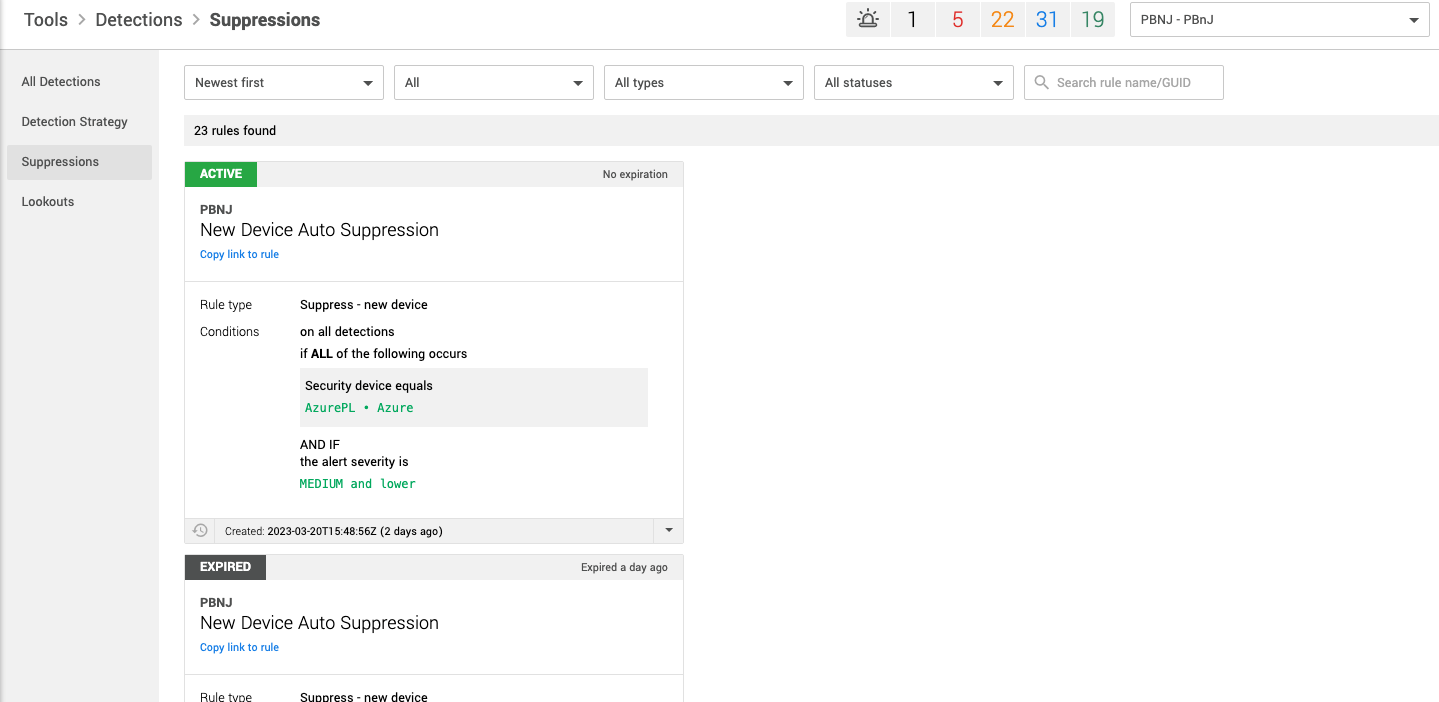
You can view suppressions by going to **Detections > Suppressions**.
You can only view the suppressions here. You can't edit or change any of them. If you see a suppression you have a question about, disagree with, or you want removed, select Copy link to rule, and paste in a communication to us.
On this screen, you see the following:
* Along the top of this screen, you can use the lists to sort the items you view.
* **Active suppressions:** These green suppressions are active for your environment. If this suppression is one of those that SOC analysts created for all customers, you see that at the top of the suppression. The rest of the screen shows you the specific rules for this suppression. As you can see below, typically, suppressions are very targeted and specific to filter out only the noise the SOC analysts determine is benign.
* **Expired suppressions:** These grey suppressions are inactive for your environment. They may have been created during the tuning process or were a threat that was corrected in your environment.
* **Needs review:** These red suppressions are awaiting internal review by a member of the SOC before they go live.
---
# Agent Instructions
This documentation is published with GitBook. GitBook is the documentation platform designed so that both humans and AI agents can read, navigate, and reason over technical content effectively. Learn more at gitbook.com.
## Querying This Documentation
If you need additional information that is not directly available in this page, you can query the documentation by asking a question.
Perform an HTTP GET request on the following URL with the `ask` and `goal` query parameters:
```
GET https://docs.expel.io/workbench-reference/detections/suppression-rules.md?ask=&goal=
```
`ask` is the immediate question: it should be specific, self-contained, and written in natural language.
`goal` is what the user is ultimately trying to achieve, the reason they need the answer. Sharing it helps GitBook give you a better, more relevant answer. A goal is most helpful when it describes the outcome the user wants rather than restating the question. For example, with `ask=how do I create an API token`, a goal like `automate deployments from our CI pipeline` lets GitBook tailor the answer to that use case.
The response will contain a direct answer to the question and relevant excerpts and sources from the documentation.
Use this mechanism when the answer is not explicitly present in the current page, you need clarification or additional context, or you want to retrieve related documentation sections.