> For the complete documentation index, see [llms.txt](https://docs.expel.io/llms.txt). Markdown versions of documentation pages are available by appending `.md` to page URLs; this page is available as [Markdown](https://docs.expel.io/workbench-setup/auto-remediations/block-bad-hashes/crowdstrike-block-bad-hashes.md).
# CrowdStrike: Block Bad Hashes
This guide helps you set up your CrowdStrike device and grant necessary permissions so that you can enable the Block Bad Hashes auto remediation in Workbench.
*This guide is the first step of a larger process to enable auto remediations. After completing the steps on this page, you will be instructed to return to the* [*Enable an Auto Remediation in Workbench*](/workbench-setup/auto-remediations/enable-an-auto-remediation-in-workbench.md) *guide to finish your setup.*
## How It Works
If our SOC identifies a hash that must be blocked, Workbench completes the action automatically unless it is specifically called out as a "Never block" asset (these hashes must be added as context and then configured in Workbench; see [Step 2](#h_01jgyc8wpyhctwv9qstbsatmnq)).
{% hint style="info" %}
CrowdStrike can only block .exe execution through hash. Any other file type is still able to run.
{% endhint %}
### Endpoints Used
**CrowdStrike Falcon IOC Management API**
`/iocs/.../v1` , `sha256`
Method
Endpoint
Purpose
GET
/iocs/queries/indicators/v1
Pre-check: find an existing IOC matching the hash
POST
/iocs/entities/indicators/v1
Create a custom IOC for the hash with action prevent, severity high, applied to all hosts (the block)
Revert (unblock): GET `/iocs/queries/indicators/v1` to find the IOC ID, then DELETE `/iocs/entities/indicators/v1?ids=...`.
## Step 1: Allow Appropriate Permissions in Your EDR Console
1. Make sure you assign all API permissions in the [CrowdStrike Falcon Setup for Workbench](/connect-your-technology/a-c-integrations/crowdstrike/crowdstrike-falcon-insight-xdr-setup-for-workbench.md) guide.
2. Within API scopes, enable both **read** and **write** permissions for **IOC Management** for the Expel API client.
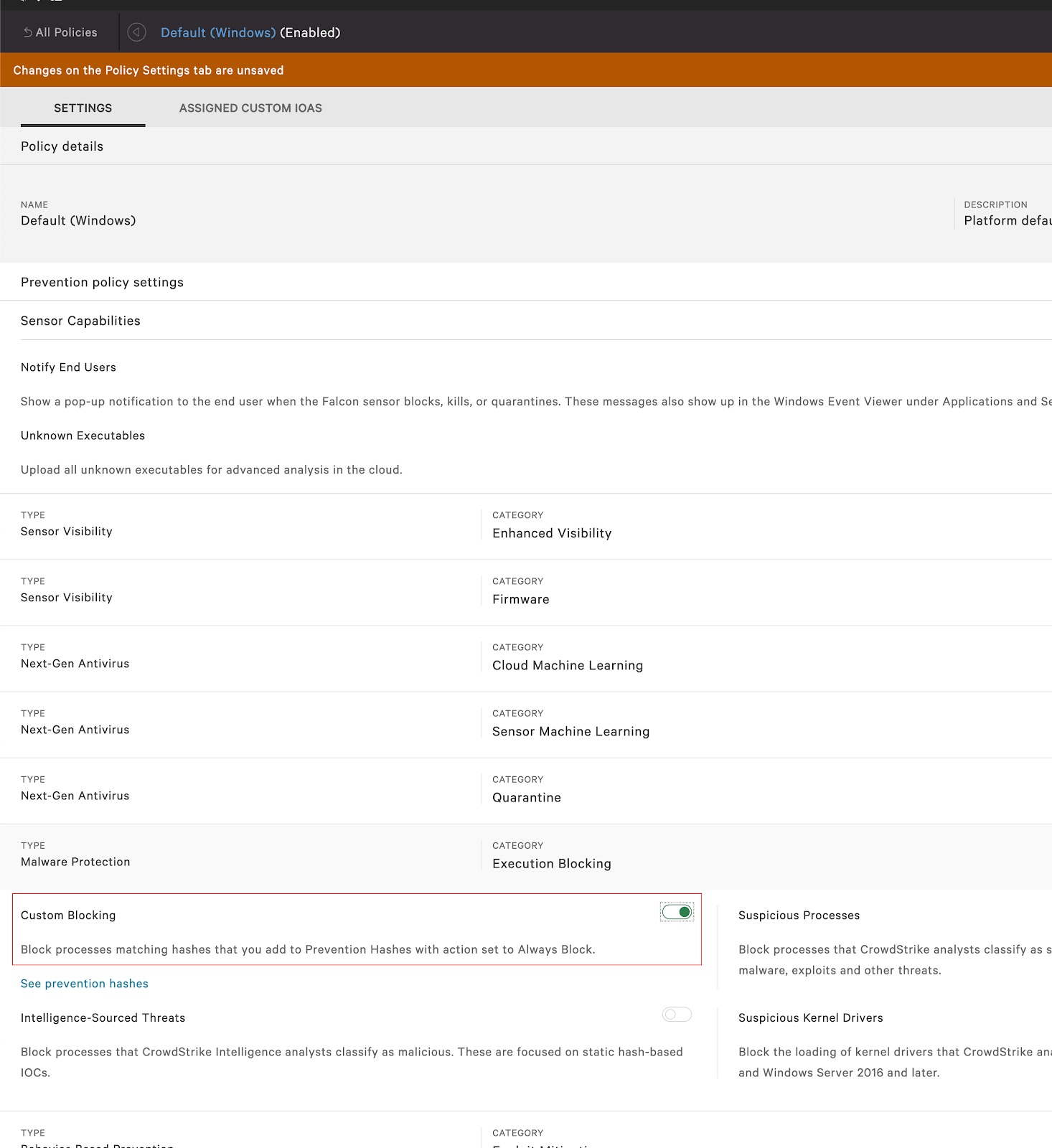
3. In Prevention Policies, enable **Custom Blocking** in the Malware Protection/Execution Blocking for each operating system (Windows, Mac, Linux).\
## Step 2: Update Your Context
**If you do not want to specify any hashes for a "do not block" list, skip to** [**Step 3**](#h_01jgycgywj4m9tc7j443dvsmf1)**.**
Working with your Customer Success Manager, add any hashes that should be on the "do not block" list as [org context](/workbench-reference/expel-terminology.md#org-context) for your environment. You will then be able to select those hashes as "Never block" assets when you enable the auto remediation in Workbench.
{% hint style="info" %}
If our SOC identifies a hash that must be blocked, any hashes added as "Never block" assets are assigned to you as actions rather than being blocked automatically.
{% endhint %}
## Step 3: Return to the Main Setup Guide
Your CrowdStrike device is now ready for the Block Bad Hashes auto remediation. You should now do one of the following:
* **If you do not need to set up any other devices for this auto remediation**, you can return to the [Enable an Auto Remediation in Workbench](/workbench-setup/auto-remediations/enable-an-auto-remediation-in-workbench.md) guide to finish Step 2 of the process.
* **If you need to set up additional devices for this auto remediation, or wish to use this device with multiple auto remediations**, be sure to [complete those setup guides as well](/workbench-setup/auto-remediations.md) before returning to the [Enable an Auto Remediation in Workbench](/workbench-setup/auto-remediations/enable-an-auto-remediation-in-workbench.md) guide to finish Step 2 of the process. *Make sure to follow the setup guide that is specific to your auto remediation, as device setup instructions are unique to each auto remediation and device.*
---
# Agent Instructions
This documentation is published with GitBook. GitBook is the documentation platform designed so that both humans and AI agents can read, navigate, and reason over technical content effectively. Learn more at gitbook.com.
## Querying This Documentation
If you need additional information that is not directly available in this page, you can query the documentation by asking a question.
Perform an HTTP GET request on the following URL with the `ask` and `goal` query parameters:
```
GET https://docs.expel.io/workbench-setup/auto-remediations/block-bad-hashes/crowdstrike-block-bad-hashes.md?ask=&goal=
```
`ask` is the immediate question: it should be specific, self-contained, and written in natural language.
`goal` is what the user is ultimately trying to achieve, the reason they need the answer. Sharing it helps GitBook give you a better, more relevant answer. A goal is most helpful when it describes the outcome the user wants rather than restating the question. For example, with `ask=how do I create an API token`, a goal like `automate deployments from our CI pipeline` lets GitBook tailor the answer to that use case.
The response will contain a direct answer to the question and relevant excerpts and sources from the documentation.
Use this mechanism when the answer is not explicitly present in the current page, you need clarification or additional context, or you want to retrieve related documentation sections.